Backups
The Backups page saves and restores your node's configuration. It uses the same backups, in the same place (/var/asl-backups) and format, as asl-backup-menu. It has three tabs: This server, AllStarLink cloud and Settings.
This Server
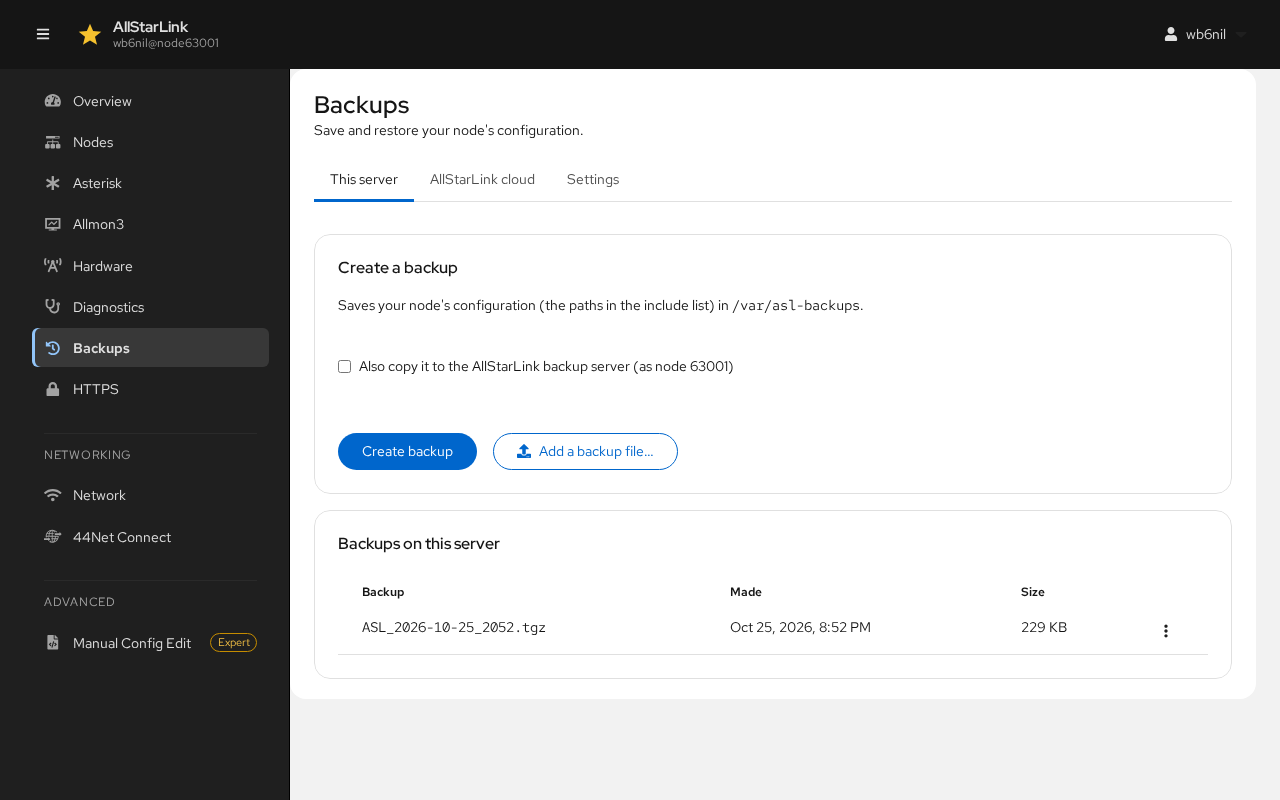
Creating a Backup
Click Create backup. The paths in the include list (see Settings) are saved in /var/asl-backups.
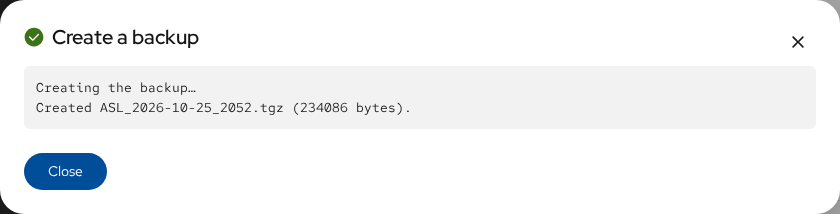
Check Also copy it to the AllStarLink backup server to keep a copy off the server as well. The copy is stored under the node number shown next to the checkbox, using that node's password.
Managing Backups
Backups on this server lists the backups. The menu (⋮) on each row has:
- Restore…: restores the backup (see below).
- Download: saves the backup file to your computer.
- Copy to AllStarLink: uploads it to the AllStarLink backup server.
- Delete…: deletes it.
Add a backup file… uploads a backup from your computer, for example one made on another node, so that you can restore it.
Restoring a Backup
Restoring writes the files from the backup over the current configuration. Before anything is written, the current configuration is saved as a new backup, so a restore can be undone. Only the paths in the include list are restored, and unsafe paths in the archive are refused.
After a restore, click Restart Asterisk now to load the restored configuration.
AllStarLink Cloud
AllStarLink keeps backups for registered nodes. This server uses its node's credentials. To see another node's backups, enter its Node number and Node password (from the AllStarLink Portal), then click Show backups.
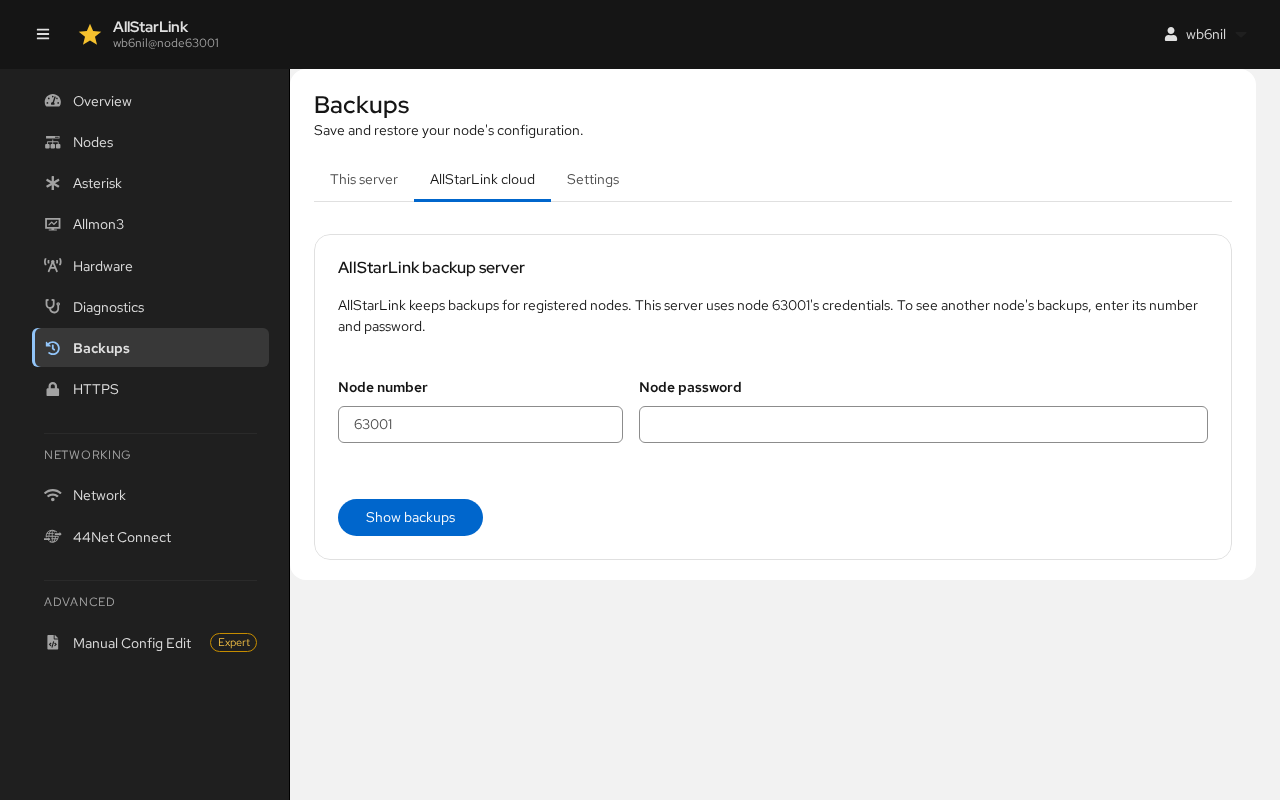
For each backup on the AllStarLink server, Copy to this server downloads it to /var/asl-backups, and Restore restores it directly.
Settings
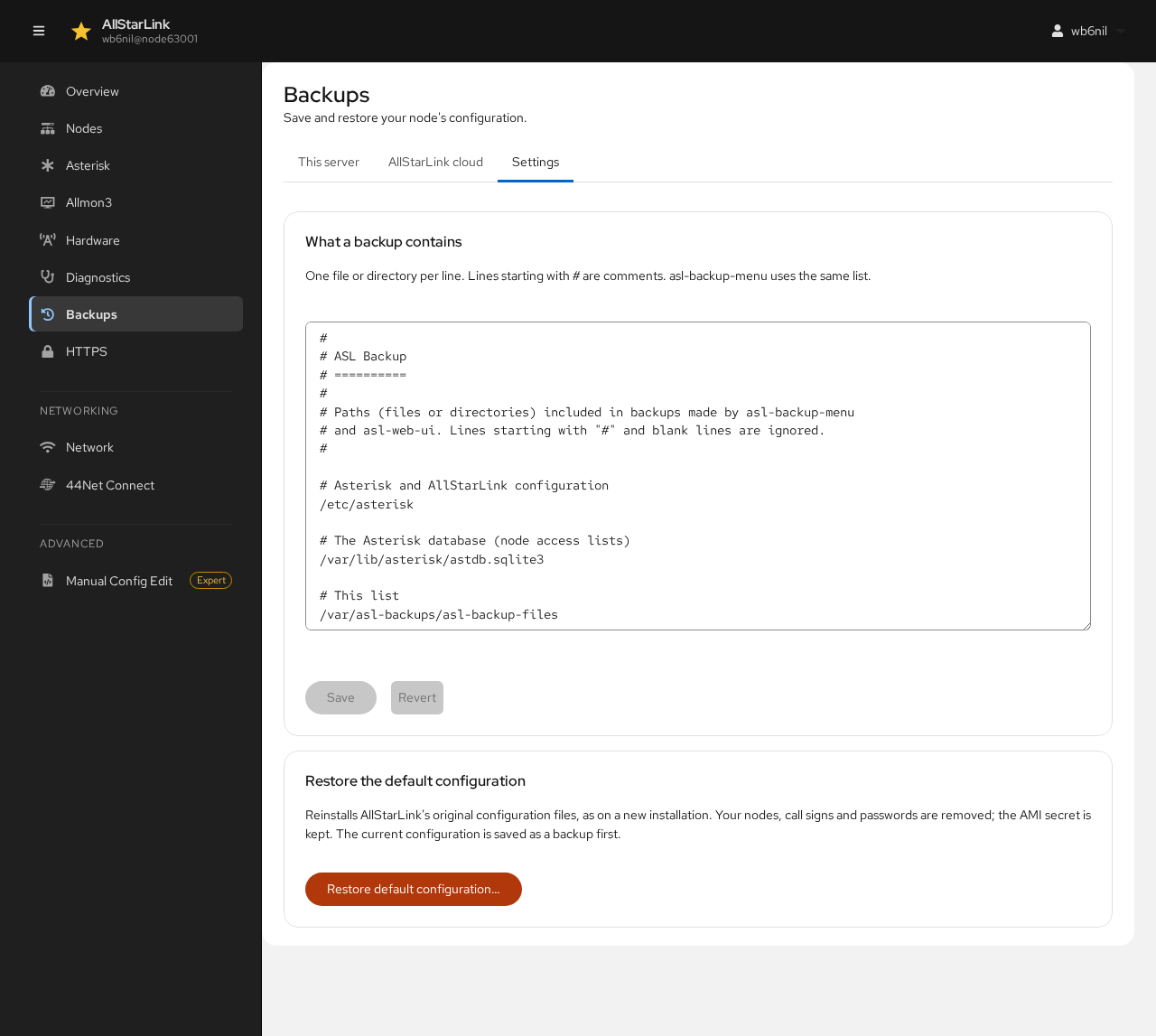
What a Backup Contains
The include list has one file or directory per line. Lines starting with # are comments. By default it includes /etc/asterisk, the Asterisk database with the nodes' access lists (/var/lib/asterisk/astdb.sqlite3) and the list itself. Add other paths you want backed up, such as custom sound files, then click Save. asl-backup-menu uses the same list.
Restore the Default Configuration
Restore default configuration… reinstalls AllStarLink's original configuration files, as on a new installation. Your nodes, call signs and passwords are removed; the AMI secret is kept. The current configuration is saved as a backup first.
Afterwards the server has the sample node 1999 again; see Setting Up Your First Node.