Nodes
The Nodes page lists the AllStarLink nodes on the server, with each one's call sign, radio interface, duplex mode and registration state.
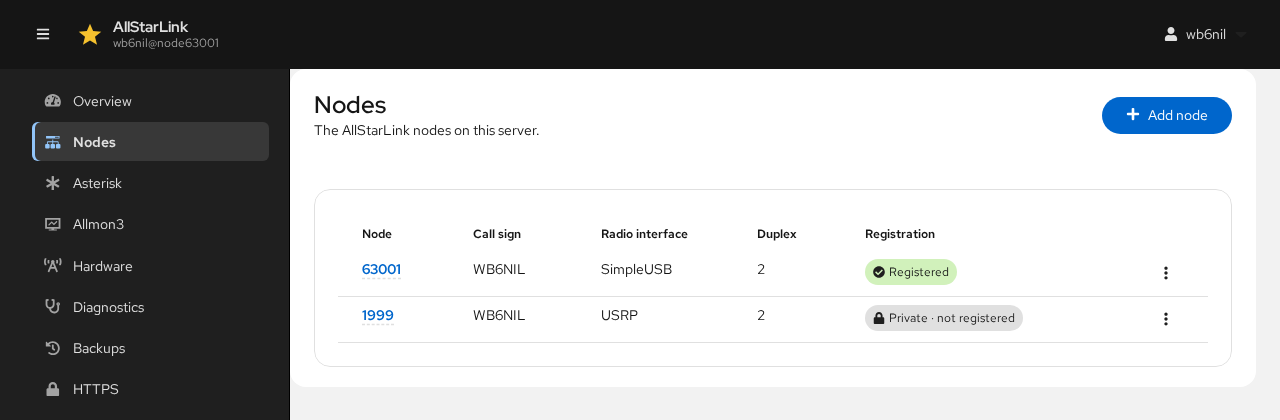
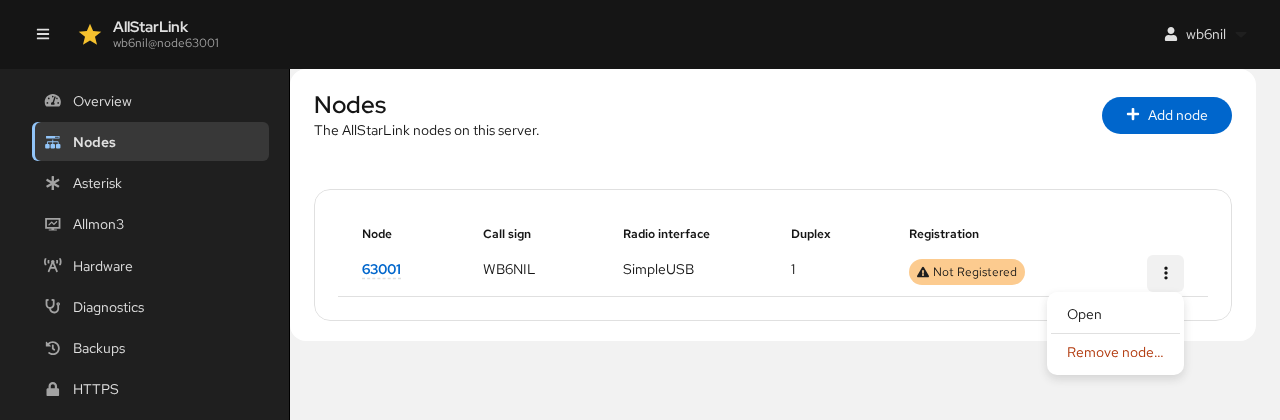
Click a node number to open its page. The menu (⋮) at the end of each row has Open and Remove node…:
Adding a Node
A server can run more than one node, for example a radio node and a hub. Click Add node to add another one.
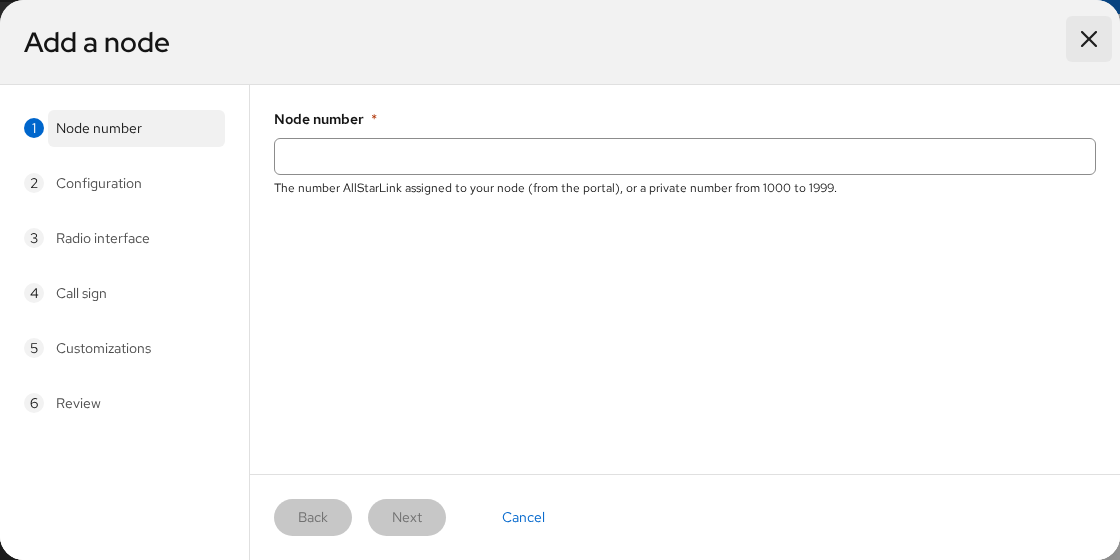
The wizard has the same steps as Setting Up Your First Node: node number, password, configuration, radio interface, call sign, customizations and review. Each node needs its own radio interface, unless it is a hub with no radio.
Removing a Node
Choose Remove node… from the node's menu on the Nodes page, or click Remove node on the node's page. The ASL Web UI shows the changes to the configuration files before removing the node. Restart Asterisk afterwards.
A Node's Page
A node's page has its number and call sign at the top and a tab for each group of settings:
- General: number, password, registration, call sign, duplex and startup connection.
- Radio interface: which channel driver the node uses.
- Tuning: levels and settings of a SimpleUSB or USBRadio interface. See Tuning a Radio Interface.
- Voter: the voter clients, for a node using a Voter/RTCM interface.
- Access control: which other nodes may connect.
- Customizations: ready-made changes for common hardware and needs.
Saving Changes
Changes on the General, Radio interface, Voter and Customizations tabs are kept as a draft until you save them, even if you switch between those tabs. A dot marks each tab with unsaved changes, and the bar at the bottom of the page counts them:
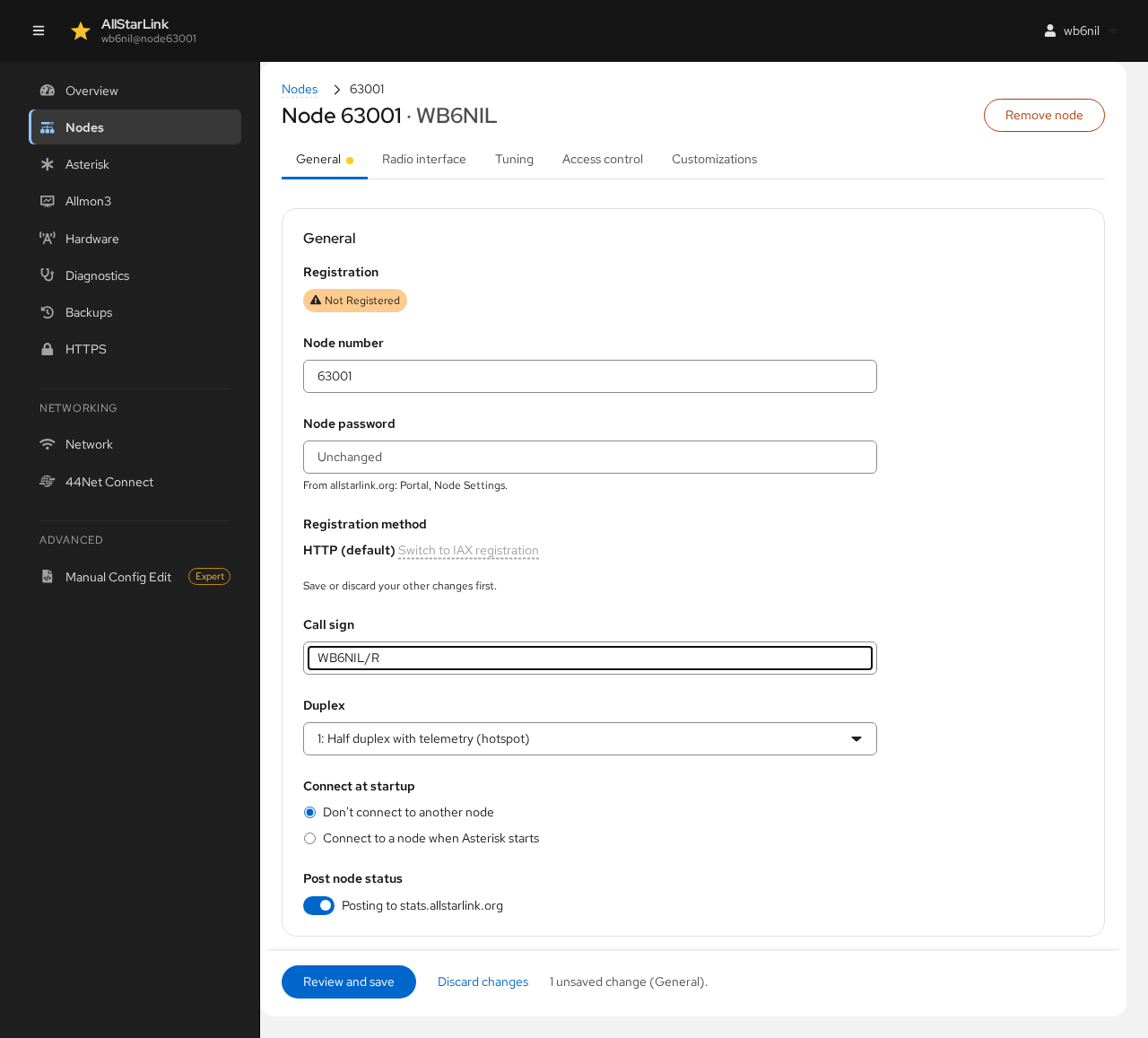
- Review and save shows the exact changes to each file. Click Apply to write them.
- Discard changes throws the draft away.
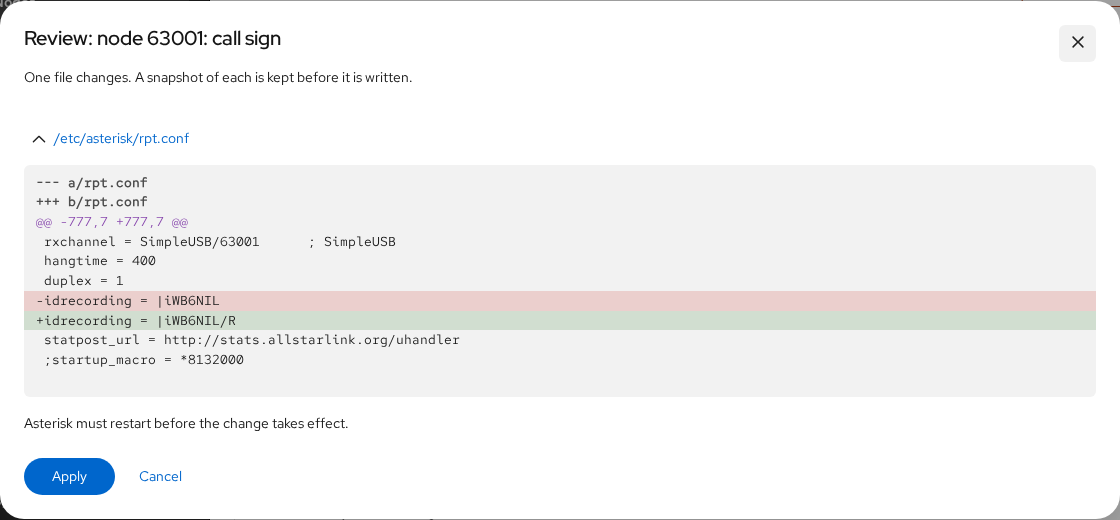
If you try to leave the page with unsaved changes, the ASL Web UI asks whether to discard them. Most saved changes need an Asterisk restart; use the banner that appears at the top of the page.
Changes on the Tuning and Access control tabs take effect immediately and are not part of Review and save.
General
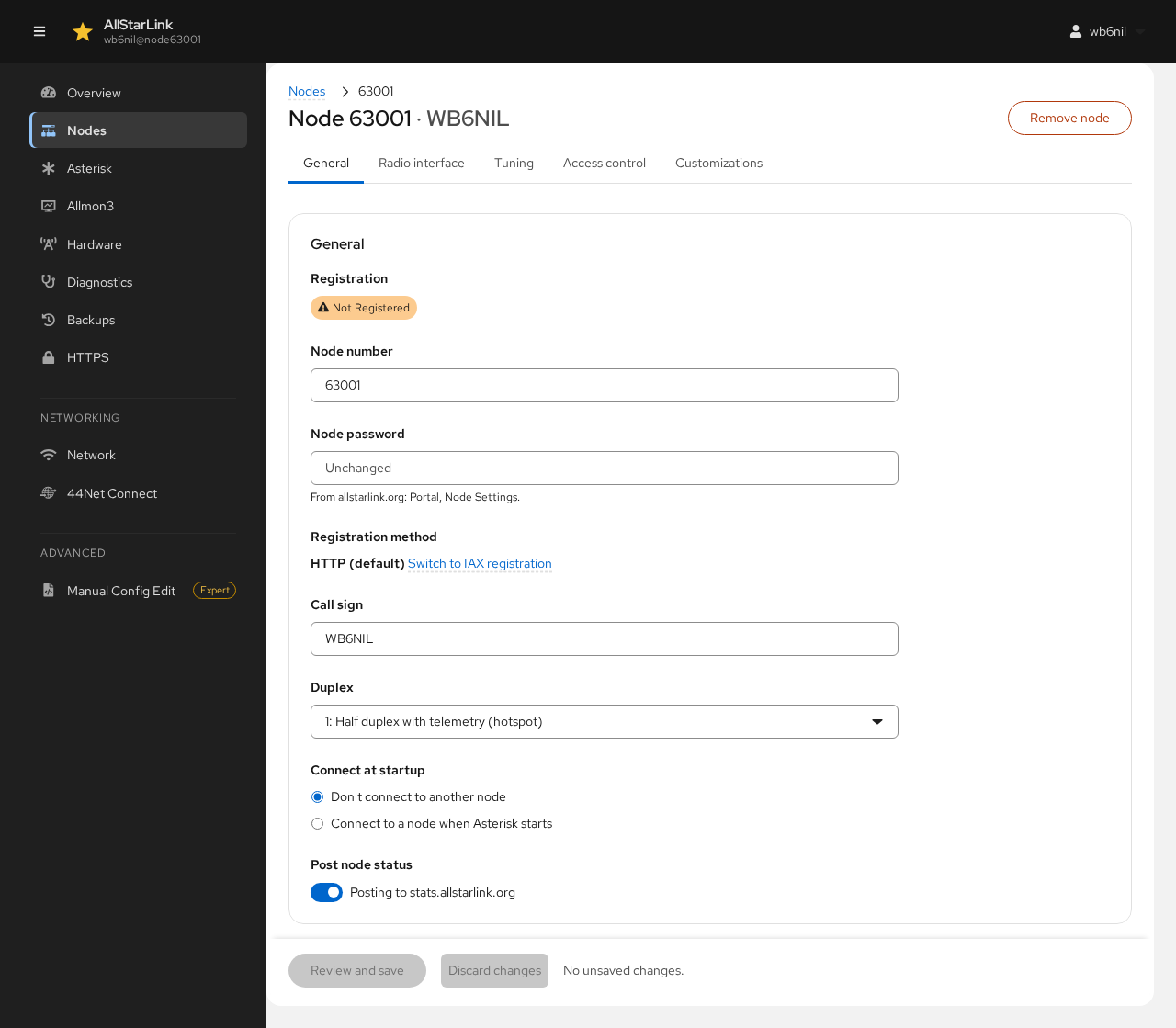
- Registration shows whether AllStarLink has accepted the node's registration.
- Node number renames the node. All of its settings move with it.
- Node password is the node's password from the AllStarLink Portal (Portal → Node Settings). It shows Unchanged until you type a new one.
- Registration method is HTTP by default. Switch to IAX registration changes it; see HTTP Registration and IAX Registration.
- Call sign is used for the node's identification.
- Duplex sets how the node handles audio and telemetry, from
0(half duplex, no telemetry) through1(hotspot) and2(repeater) to the full-duplex variants3and4. Seeduplexin rpt.conf. - Connect at startup can link the node to another node every time Asterisk starts.
- Post node status sends the node's status to stats.allstarlink.org, for the AllStarLink map and node lists.
Radio Interface
The Radio interface tab chooses the Asterisk channel driver for the node:
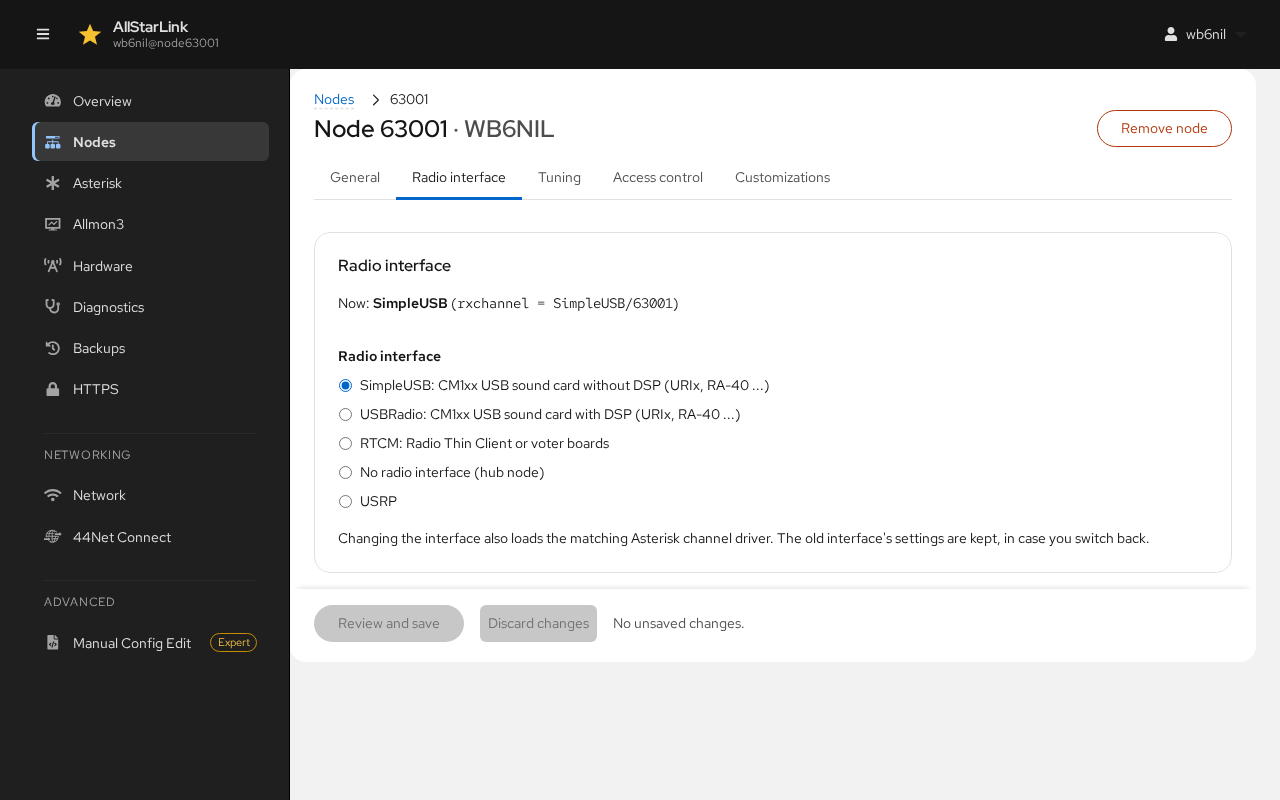
- SimpleUSB: a CM1xx USB sound card without DSP (URIx, RA-40 and similar).
- USBRadio: the same sound cards with DSP.
- RTCM: a Radio Thin Client Module or VOTER boards. See VOTER/RTCM.
- No radio interface: a hub node.
- USRP: a USRP connection to other software.
Changing the interface also loads the matching channel driver. The settings of the old interface are kept in case you switch back.
Access Control
The Access control tab limits which nodes may connect to this node, using an allow list or a deny list. See Allow/Deny Lists for how this works.
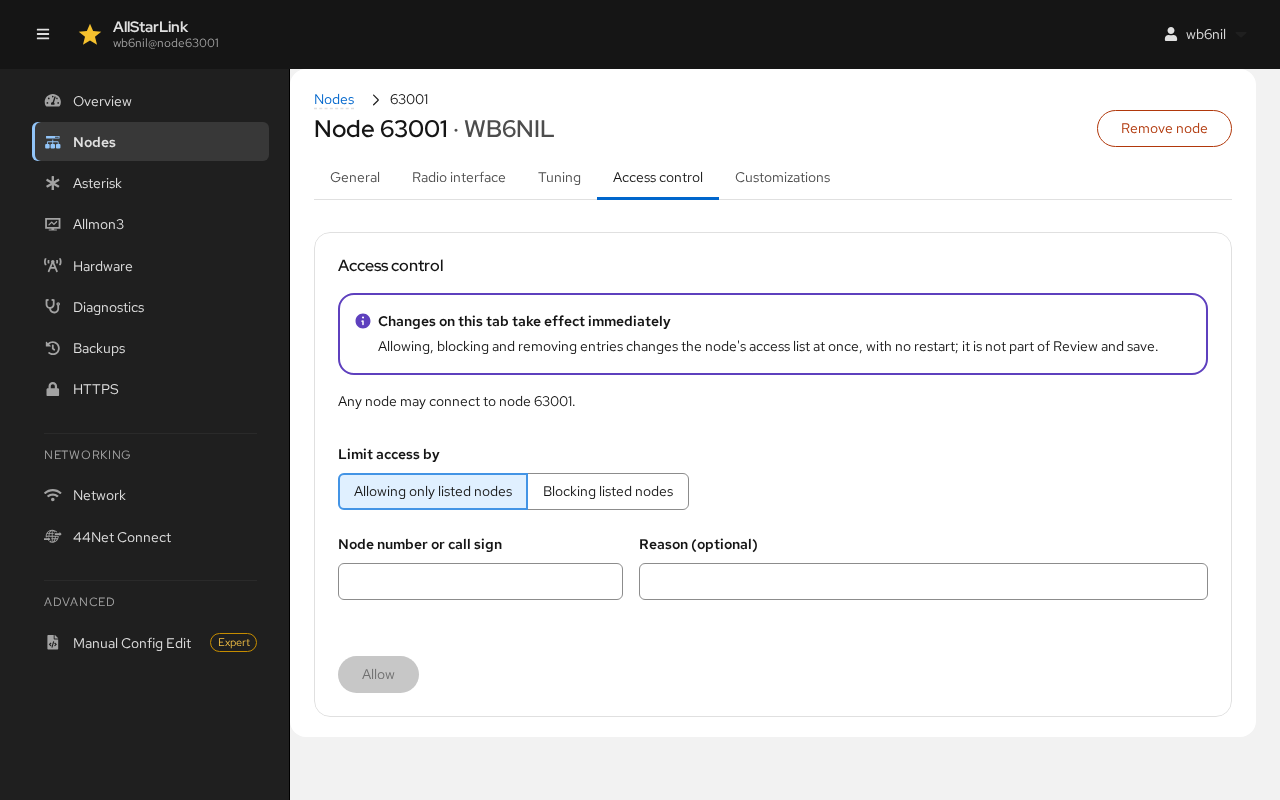
- Limit access by chooses between Allowing only listed nodes and Blocking listed nodes.
- Enter a Node number or call sign and an optional Reason, then click Allow (or Block).
Changes on this tab take effect immediately. Allowing, blocking or removing an entry changes the node's access list at once, without restarting Asterisk.
Customizations
The Customizations tab offers ready-made changes for common hardware (AIOC, AllScan UCI, HotSpotRadio, SHARI and others) and needs (archiving audio, GPIO pins for COS LEDs, hotspot wait times). They come from /etc/asterisk/custom.
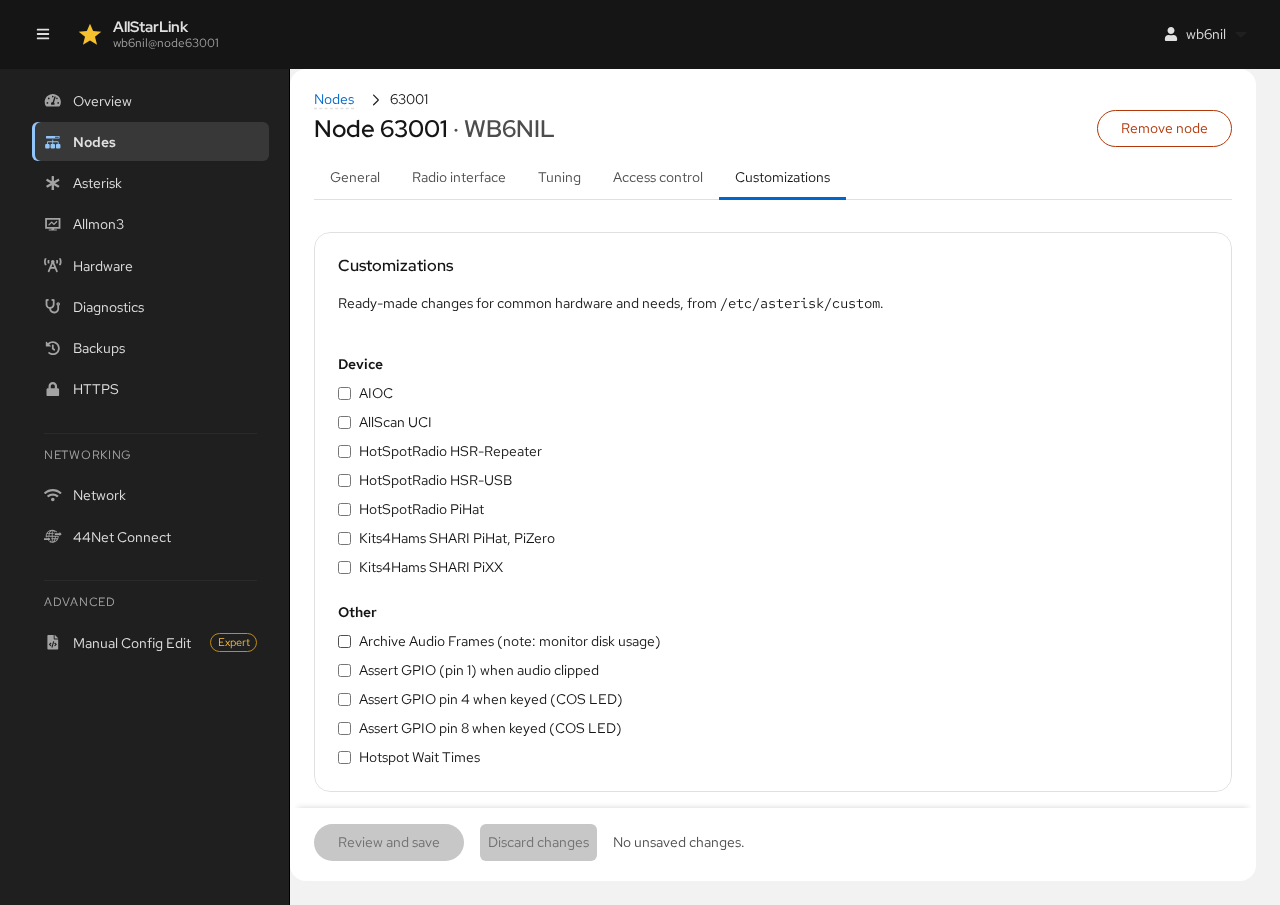
Check or uncheck a customization, then Review and save.