Network and 44Net Connect
The Networking section of the navigation has two pages: Network and 44Net Connect.
Network
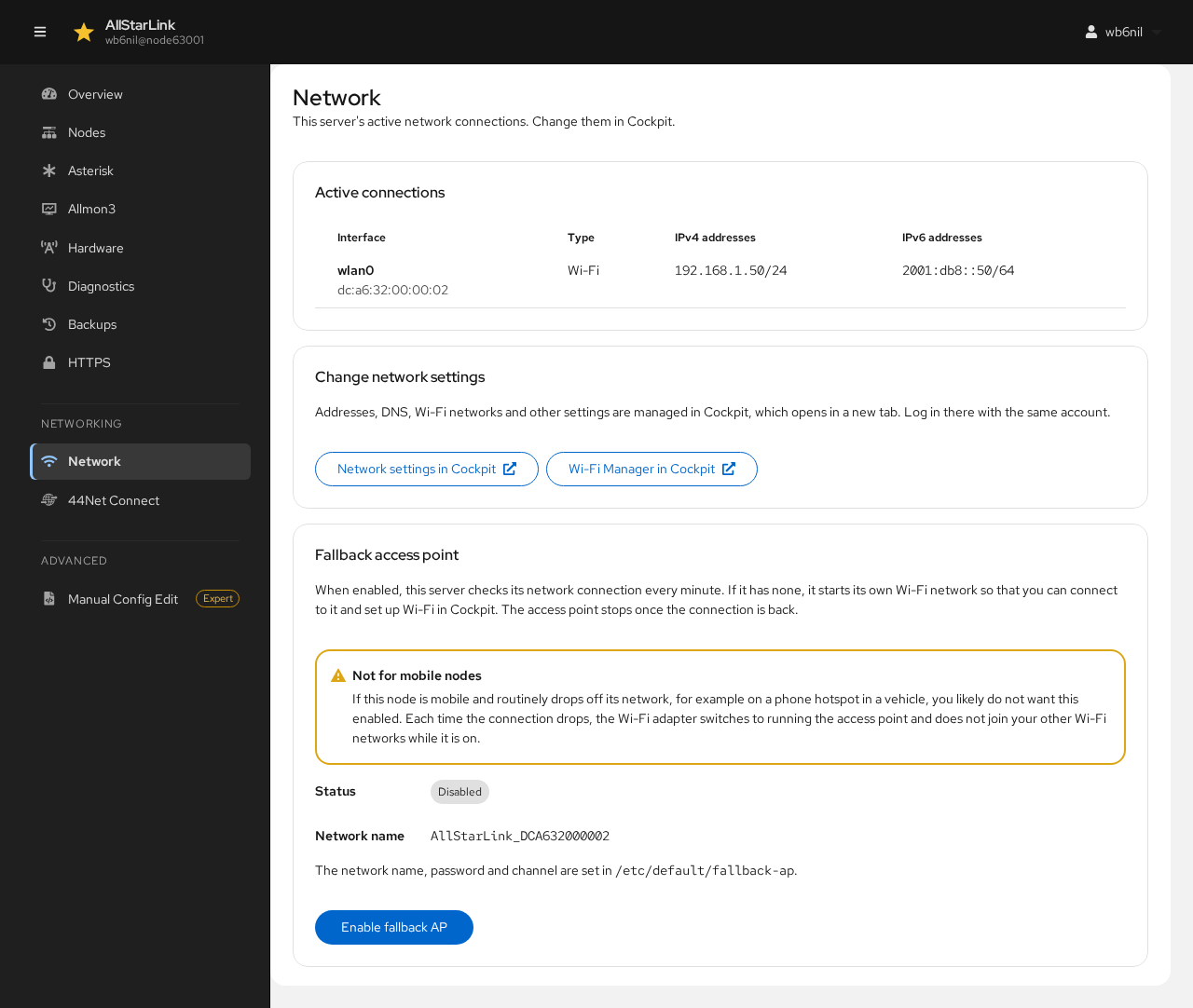
The Network page shows the server's active network connections, and on the ASL3 Appliance, the fallback access point.
Active Connections
Each active connection is listed with its interface, MAC address, type (Ethernet or Wi-Fi) and IPv4 and IPv6 addresses.
Changing Network Settings
Addresses, DNS, Wi-Fi networks and other network settings are managed in Cockpit. Network settings in Cockpit and Wi-Fi Manager in Cockpit open the matching Cockpit page in a new tab; log in there with the same account. See Network Configuration.
Fallback Access Point
When the fallback access point is enabled, the server checks its network connection every minute. If it has none, it starts its own Wi-Fi network so that you can connect to it and set up Wi-Fi in Cockpit. The access point stops once the server is connected again.
The status shows whether the fallback access point is enabled, whether it is on now, and its network name (AllStarLink_ followed by the Wi-Fi adapter's address). The network name, password and channel are set in /etc/default/fallback-ap. Click Enable fallback AP to turn it on, or Disable fallback AP to turn it off.
Not for Mobile Nodes
If the node is mobile and routinely drops off its network, for example on a phone hotspot in a vehicle, you likely don't want this enabled. Each time the connection drops, the Wi-Fi adapter switches to running the access point and doesn't join your other Wi-Fi networks while it is on.
The fallback access point is part of the ASL3 Appliance (asl3-appliance-pc and asl3-appliance-pi). On other systems the page says it needs the appliance.
44Net Connect
44Net Connect gives the node a public 44Net (AMPRNet) address through a WireGuard tunnel, so that other nodes can connect to it even behind NAT, CGNAT or a router where you can't forward ports.
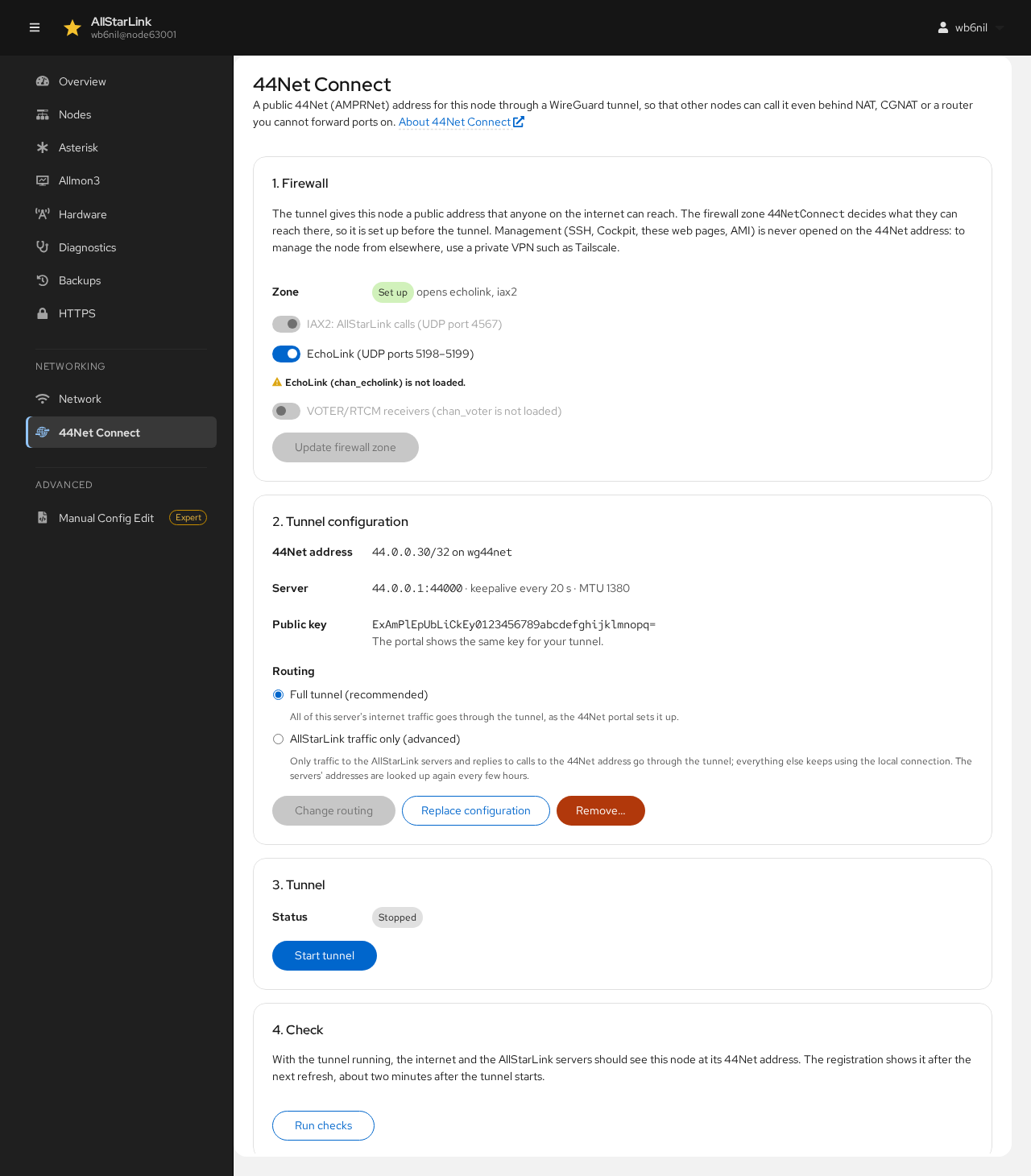
The 44Net Connect page sets up the tunnel on the ASL3 Appliance. On other systems it says it needs the appliance. Here the tunnel is configured but not started:
Management (SSH, Cockpit, these web pages and AMI) is never opened on the 44Net address. To manage the node from elsewhere, use a private VPN such as Tailscale.
Setup has four steps:
- Firewall: creates the
firewalldzone44NetConnectfor the tunnel and chooses what other nodes may reach through it: IAX2 (AllStarLink calls, on the node's IAX port) and, optionally, EchoLink (UDP ports 5198–5199). If the zone no longer matches the node's settings, for example after changing the IAX port, the page warns you. - Tunnel configuration: paste the WireGuard configuration from the 44Net portal. The Private key is kept only on the server; it is never included in backups. Then choose the Routing:
- Full tunnel (recommended): all of the server's internet traffic goes through the tunnel.
- AllStarLink traffic only (advanced): only traffic to the AllStarLink servers goes through the tunnel. The routes are kept up to date automatically.
- Tunnel: starts the tunnel. Because a broken tunnel could cut the server off the network, you must confirm that it works. If you don't confirm in time, the tunnel is stopped again.
- Check: Run checks confirms that the node's registrations go through the tunnel.
If a 44Net tunnel was set up by hand (in /etc/wireguard/wg0.conf), the page shows it as Tunnel set up by hand and offers Migrate this tunnel to bring it under the page's management. Set up the firewall zone (step 1) first.
Once the tunnel is configured, step 2 shows its 44Net address, server and public key (the 44Net portal shows the same key for your tunnel), with Change routing, Replace configuration and Remove…, which takes the tunnel down and removes it. Step 3 has Start tunnel and Stop tunnel.