Installing and Logging In
The ASL Web UI runs on AllStarLink 3 on Debian 13 (trixie), including the ASL3 Appliance. It is served by the node's web server (Apache or nginx) at https://<your-node>/asl-web-ui/.
Installing
The ASL Web UI comes installed with the ASL3 Appliance packages (asl3-appliance) starting with version 3.0.0 and no further installation is necessary.
For systems not running the ASL Appliance packages, the package is installed as follows:
sudo apt update
sudo apt install -y asl-web-ui
Allowing an Account to Log In
You log in to the ASL Web UI with a Linux account on the node, the same one you use for SSH or Cockpit. The account must be a member of the asl-web-ui group.
ASL Appliance is Pre-Configured
The ASL Appliance package is preconfigured to add all local users to the
asl-web-ui group and this is unnecessary on those platforms.
If you need to add a user manually to the asl-web-ui group, you will need to do so from the Linux CLI using the following command:
sudo usermod -aG asl-web-ui <username>
Replace <username> with the account name. The root account can't log in.
Removing an account from the group takes effect on its next request.
HTTPS Is Required
The ASL Web UI refuses logins over plain HTTP, because your password would cross the network unencrypted.
- Apache: the package enables its configuration automatically. The ASL3 Appliance and Allmon3 already serve HTTPS with a self-signed certificate.
- nginx: add
include /etc/asl-web-ui/nginx.conf;inside theserver { }block of your HTTPS site, then reload nginx.
A self-signed certificate makes the browser show a security warning. To get a trusted certificate from Let's Encrypt, use the HTTPS page once you have logged in.
nginx in Front of Apache
If nginx owns ports 80 and 443 and Apache (with the ASL Web UI) listens elsewhere, for example on port 8443 of the same machine, nginx can pass /asl-web-ui/ through to it. Proxy to Apache over HTTPS and keep the browser's Host header.
Inside http { }, for example in /etc/nginx/conf.d/websocket.conf:
map $http_upgrade $connection_upgrade {
    default upgrade;
    ''      close;
}
Inside the HTTPS server { } block:
location /asl-web-ui/ {
    proxy_pass https://127.0.0.1:8443;
    proxy_http_version 1.1;
    proxy_set_header Host $http_host;
    proxy_set_header Upgrade $http_upgrade;
    proxy_set_header Connection $connection_upgrade;
    proxy_read_timeout 1h;
    client_max_body_size 64m;
}
Logging In
Open https://<your-node>/asl-web-ui/ in a web browser, where <your-node> is the node's host name or IP address.
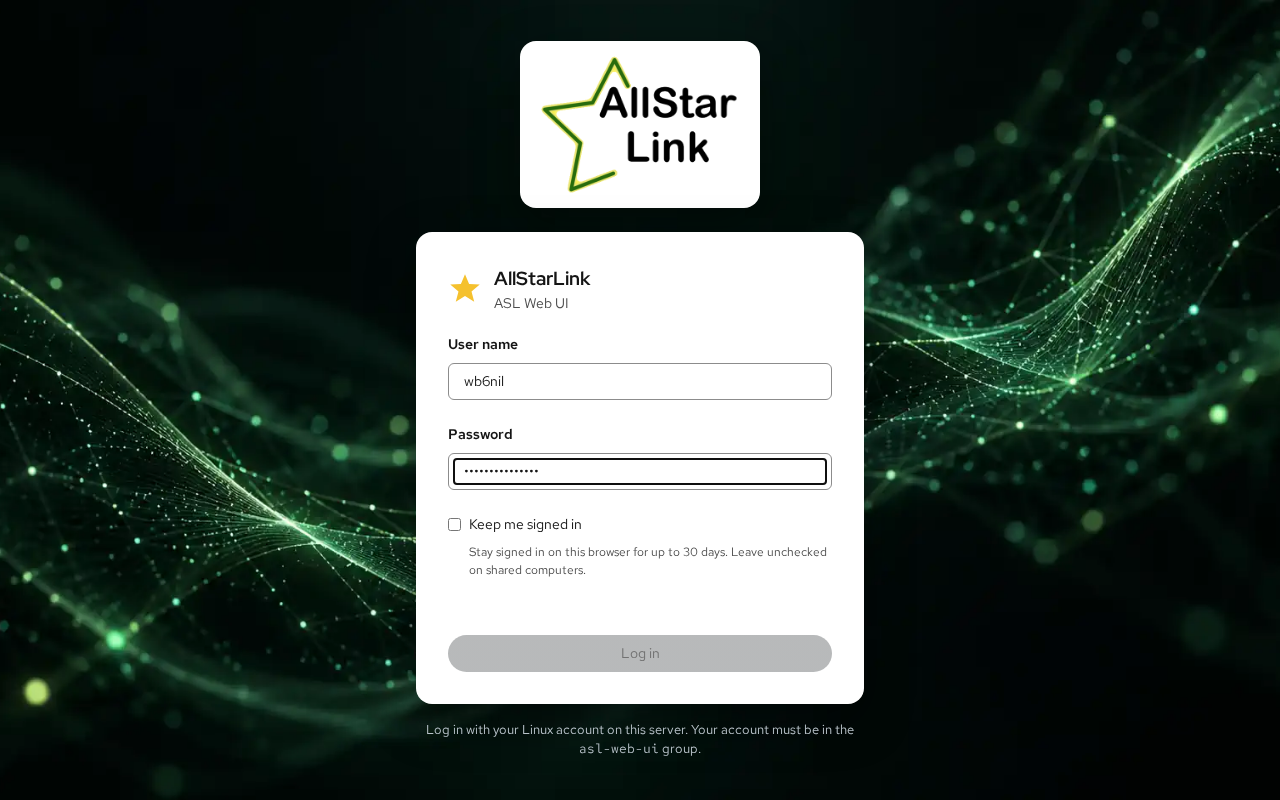
Enter the account's User name and Password, then click Log in. Check Keep me signed in to stay logged in on this browser for up to 30 days; leave it unchecked on shared computers.
After you log in, the Overview page opens. If the node still has the sample node 1999 from a new installation, continue with Setting Up Your First Node.
Restarting the Service Logs Everyone Out
Login sessions are kept in memory. Upgrading the package or restarting the asl-web-ui service logs everyone out.