Setting Up Your First Node
A new AllStarLink installation contains the sample private node 1999. Until it is replaced with your own node, the Overview page shows a Set up your node panel:
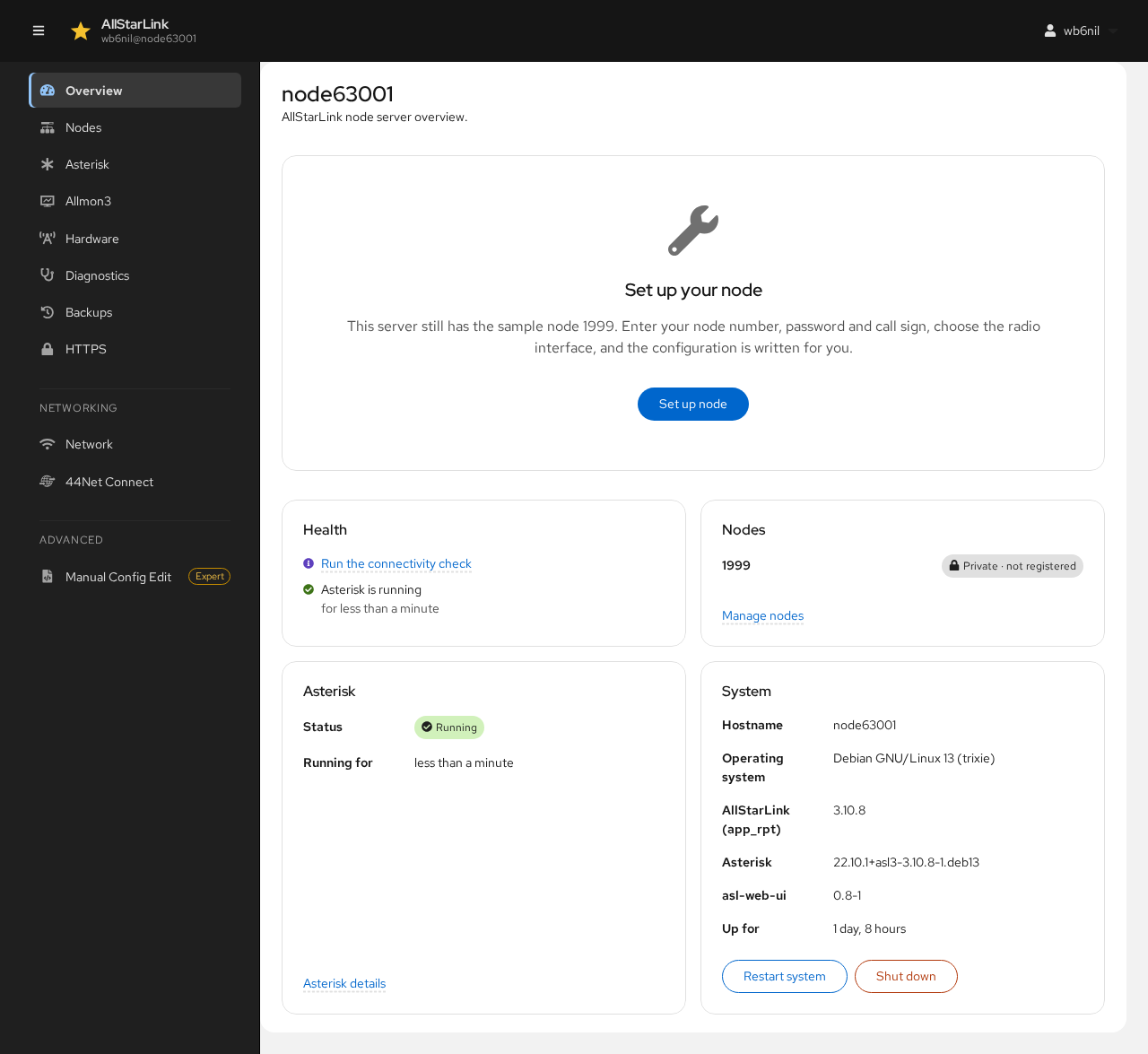
Before you start, have the following ready:
- Your node number and node password from the AllStarLink Portal (Portal → Node Settings). A private node (1000–1999) doesn't need a password.
- Your call sign.
- The kind of radio interface the node uses, for example a URI or another CM1xx USB sound card.
Click Set up node. A step-by-step wizard opens. Nothing is saved until the last step.
1. Node Number
Enter your node number.
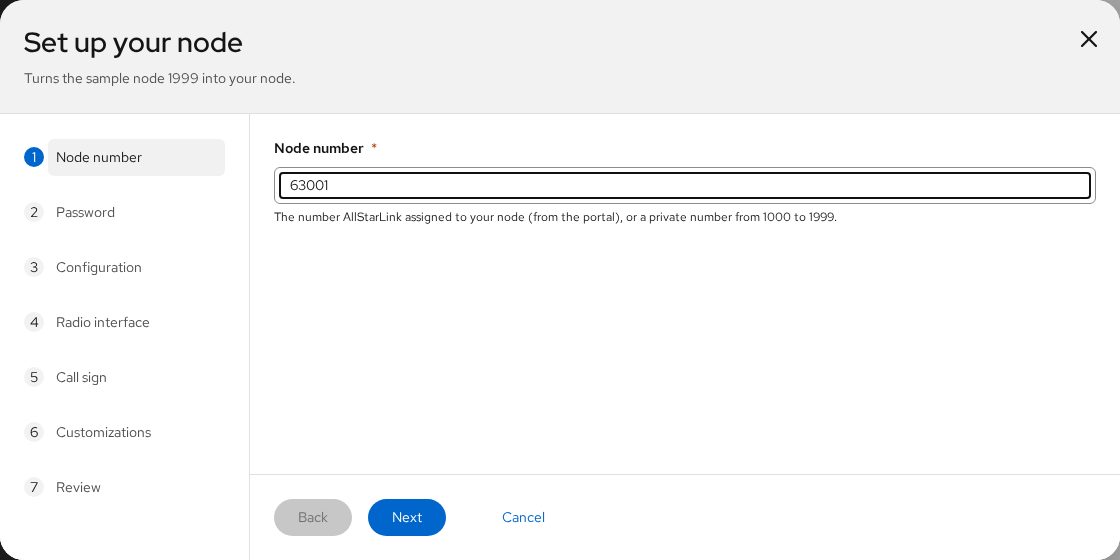
Click Next.
2. Password
Enter the node password from the AllStarLink Portal. It is used to register the node with AllStarLink. This step is skipped for private nodes.
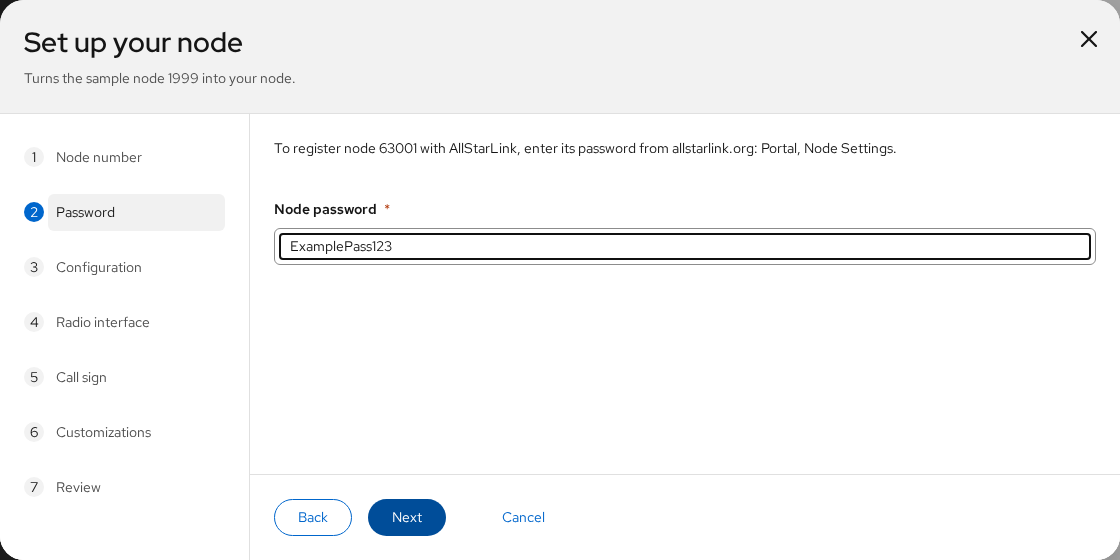
3. Configuration
Choose what kind of node this is:
- Manual configuration starts from the standard settings. You choose the radio interface in the next step and adjust the rest later on the node's page.
- Common configurations set the duplex mode and telemetry for the most common types of node: half-duplex hotspots with or without telemetry tones, full-duplex repeaters, and hubs with no radio.
- Devices are presets for specific commercial node hardware (AIOC, HotSpotRadio, SHARI and others). They set the radio interface and its settings for you.
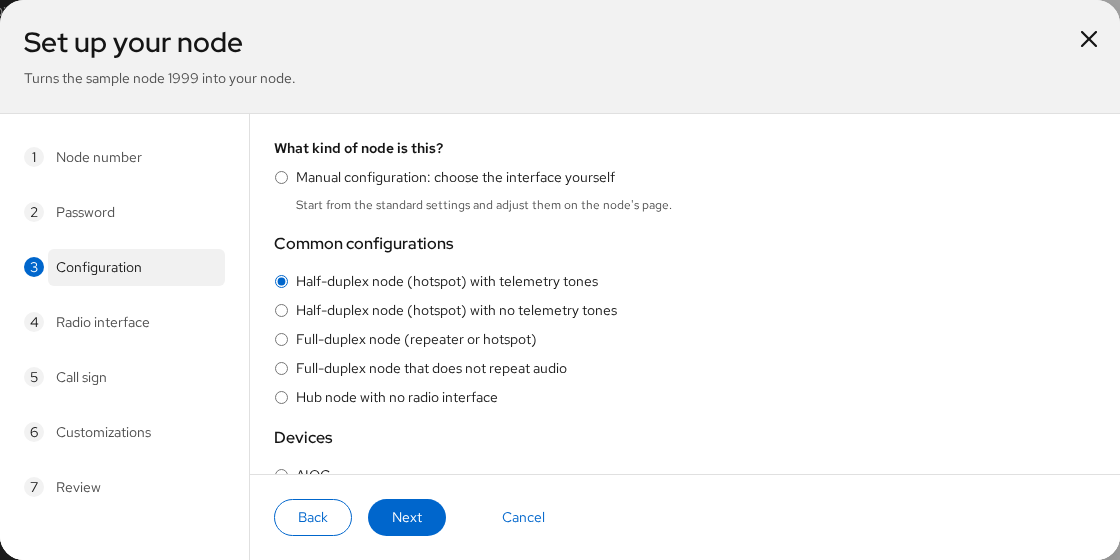
The example node 63001 is a half-duplex hotspot with telemetry tones.
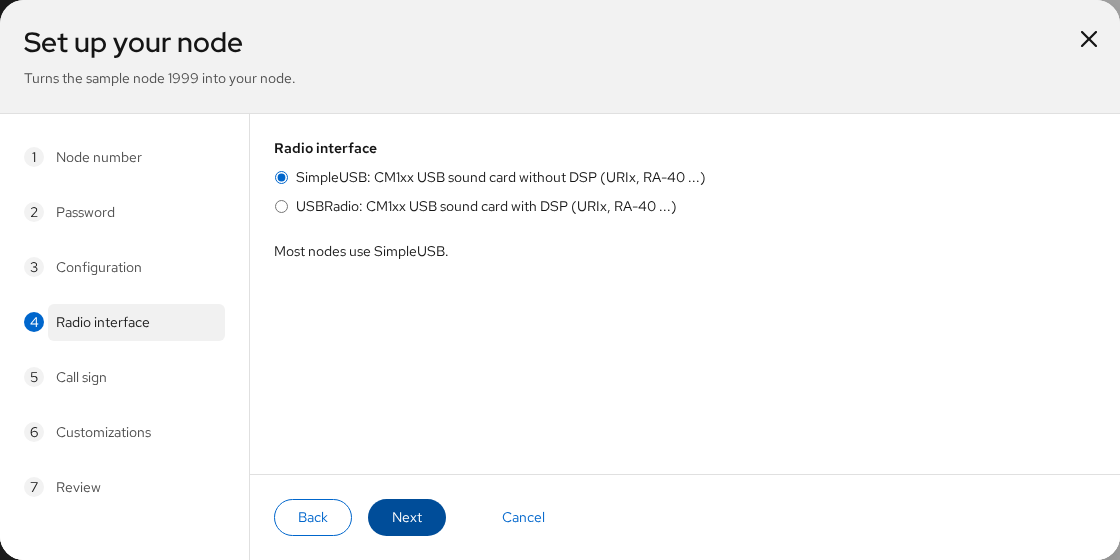
4. Radio Interface
Choose the radio interface, if the configuration you chose doesn't set it:
- SimpleUSB for a CM1xx USB sound card (URIx, RA-40 and similar) without DSP. Most nodes use SimpleUSB.
- USBRadio for the same sound cards with DSP processing.
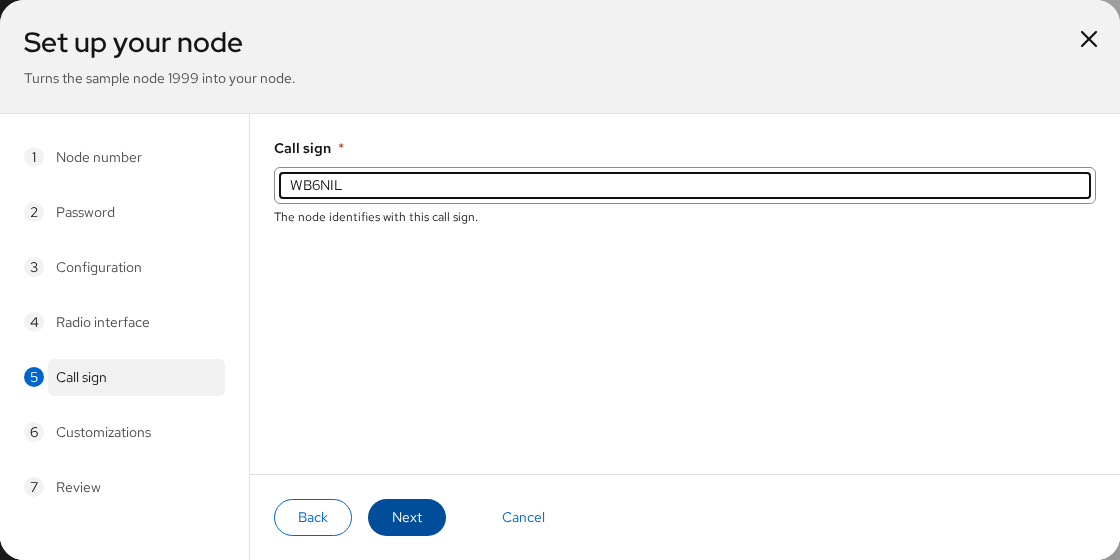
5. Call Sign
Enter the call sign the node identifies with.
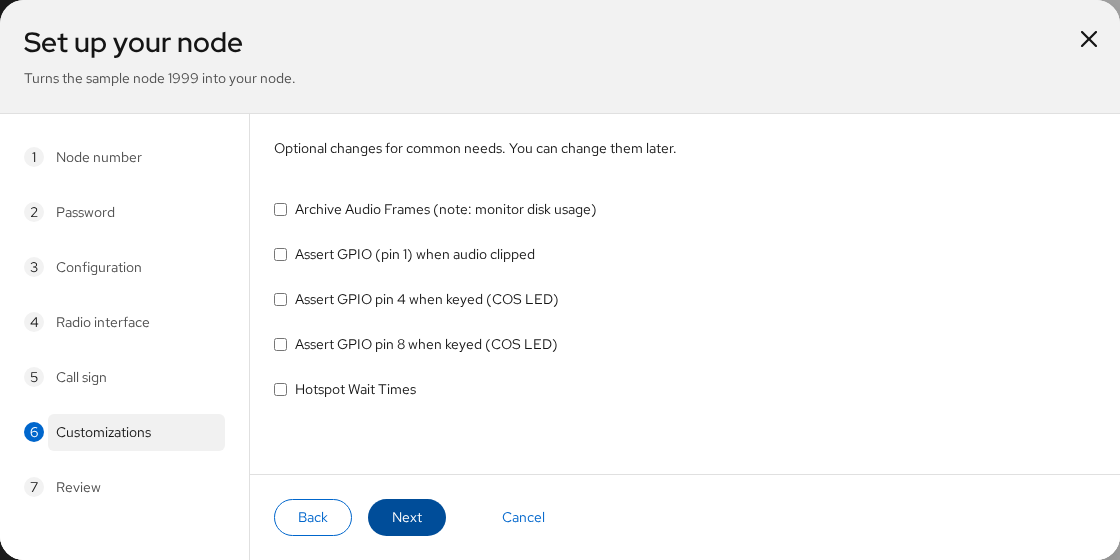
6. Customizations
Optionally choose ready-made changes for common needs, such as GPIO pins for a COS LED or the hotspot wait times. You can change these later on the node's Customizations tab.
7. Review
Check the summary. Post node status to stats.allstarlink.org lets you and others see the node's status, connections and its place on the AllStarLink map; leave it checked unless you have a reason not to.
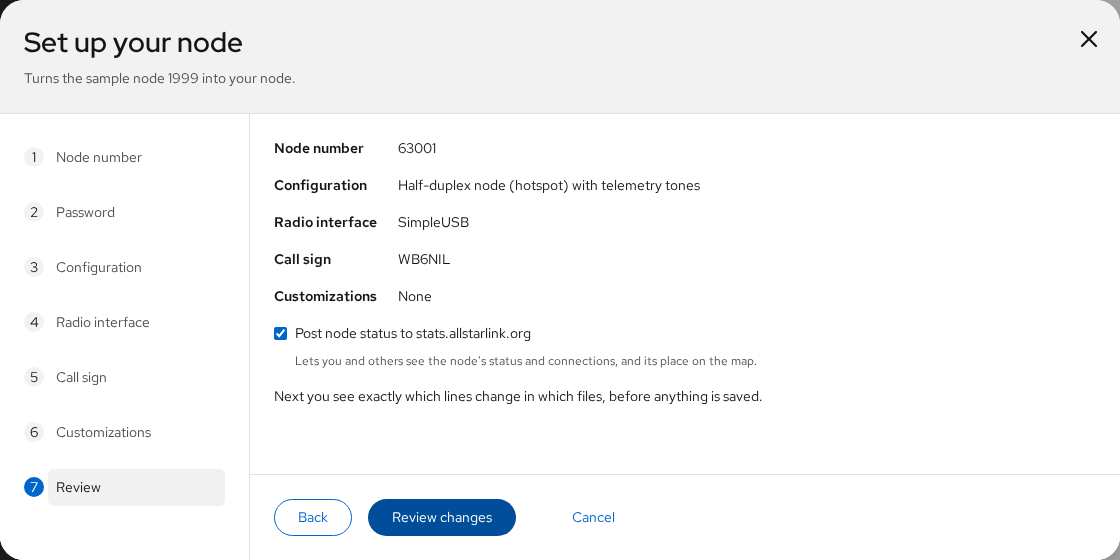
Click Review changes.
8. Review the Changes
The ASL Web UI shows every line that will change, in every file. Here node 1999 is renamed to 63001 in rpt.conf, and the matching changes are made in the registration, IAX and interface files:
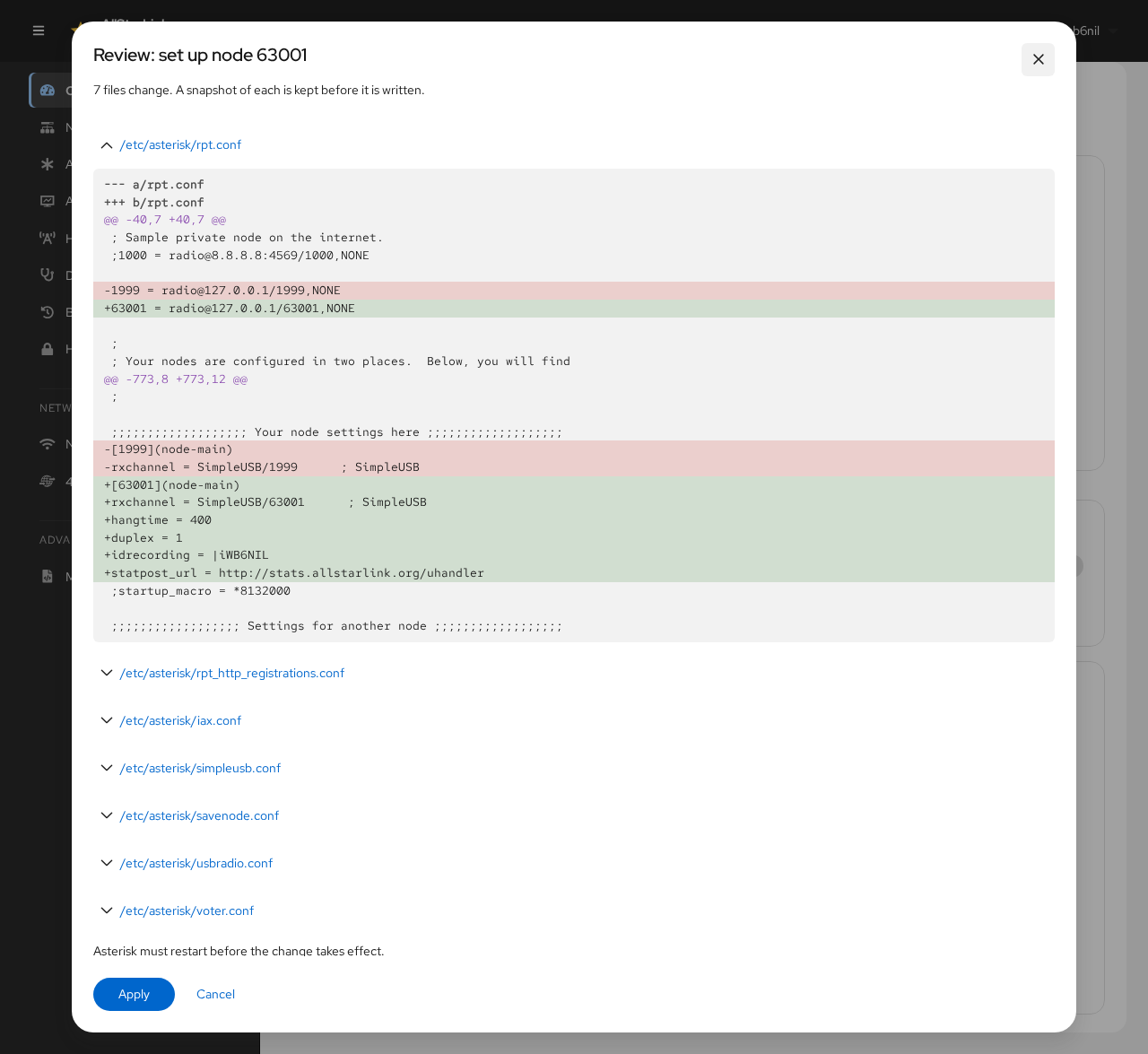
Click Apply to write the files, or Cancel to go back.
9. Restart Asterisk
The new node becomes active when Asterisk restarts. A banner at the top of the page lists the changed files:
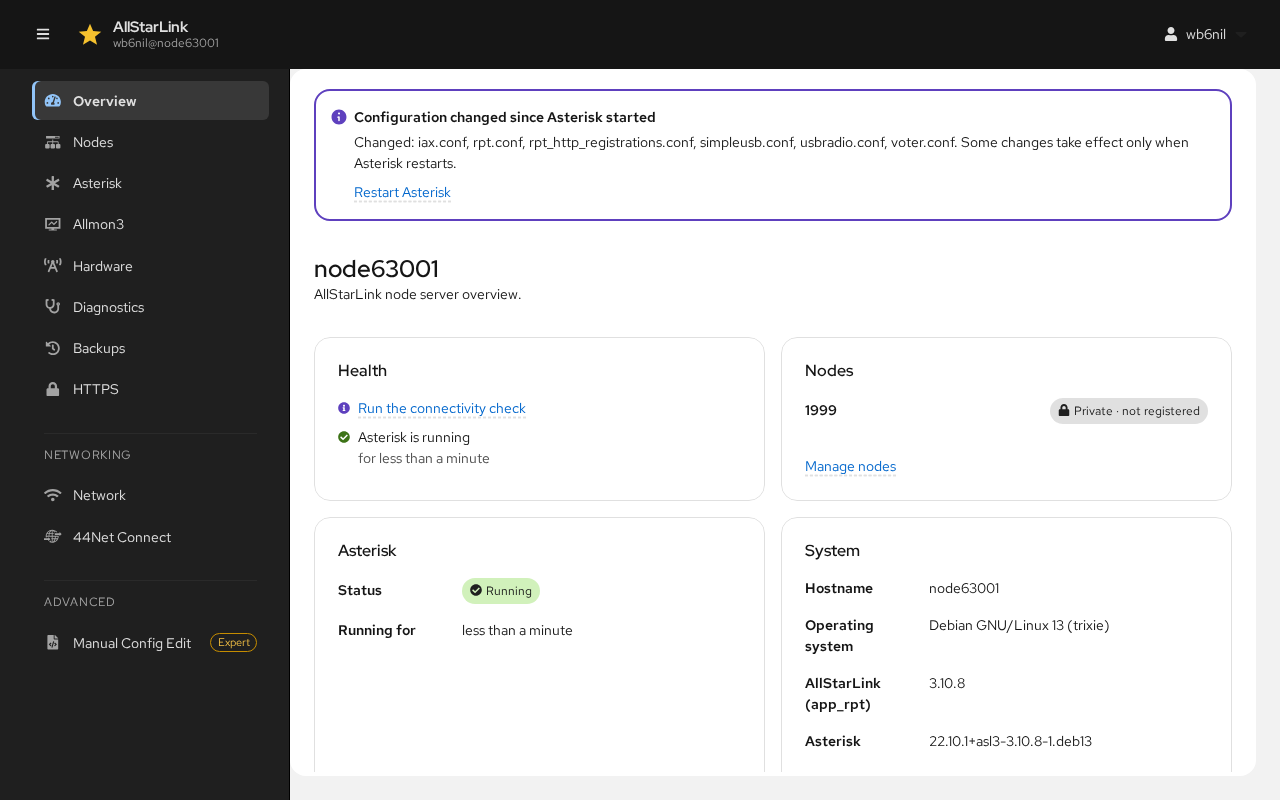
Click Restart Asterisk. After a few seconds the node is running. The Overview and Nodes pages show it, and Registered once AllStarLink accepts its registration.
Next Steps
- Tune the radio interface so the receive and transmit audio levels are right.
- Check that the node can register and be reached with the connectivity check.
- Let Allmon3 monitor the node.
- Get a trusted HTTPS certificate for the node.